
How to Connect Canon Bluetooth Printer to Laptop? (Easy Steps)
January 6, 2026

If you have a Canon Bluetooth printer, then you’ve made a smart choice. A Bluetooth printer will save you from network issues and offer a wireless way of printing. If this is your first time using a Bluetooth printer, this guide will walk you through how to connect it and begin printing normally. So, if you are trying to connect your Canon printer to your Windows or Mac laptop via Bluetooth, then follow the steps below.
Step 1: Turn on the Canon Printer
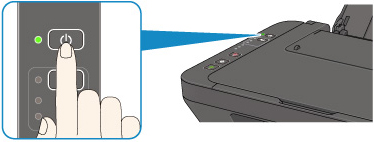
In the first step, connect the power cord of the printer to a wall outlet and switch it on. The power light of the printer should turn solid blue or green. If your printer has a physical Bluetooth button, then press it to turn Bluetooth on. Otherwise, you can use the printer’s display to enable Bluetooth.
Step 2: Enable Bluetooth on Canon Printer
Before connecting the printer to your laptop, you must enable Bluetooth on it. Here are the steps involved in enabling Bluetooth on your printer.
-
Use the printer’s display to go to the menu.
-
Go to the menu, choose Settings, and then open Device Settings.
-
Now, select Bluetooth settings, and then the Enable option. Note that your printer’s control panel may have either a touchscreen or buttons.

-
After turning on the Bluetooth on your Canon printer, it's time to do the same on your laptop.
Step 3: Turn on Bluetooth on a Laptop
You might be a Windows or Mac user. Here are the steps for both devices to turn Bluetooth on them.
For Windows
-
Go to the Start menu at the bottom left of the computer.
-
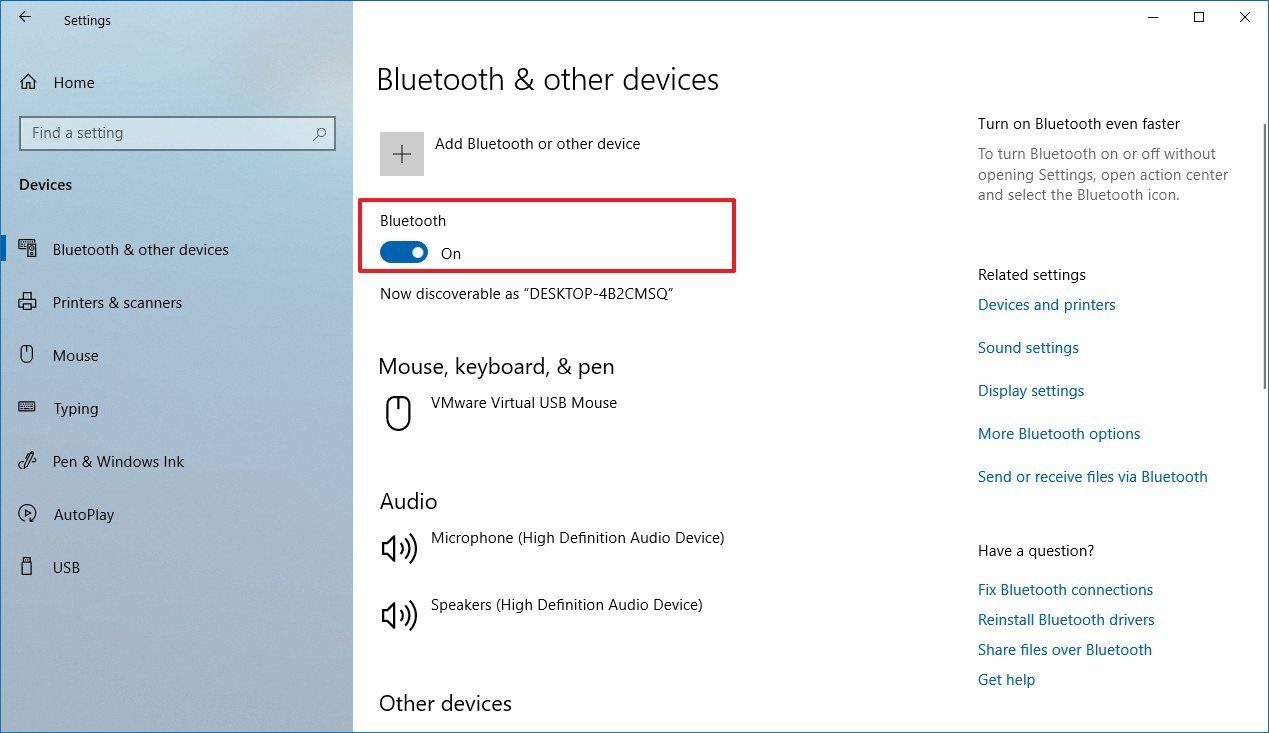
Search for Settings in the search field, and select Bluetooth & devices.
-
You’ll see the Bluetooth option; turn it on.
For Mac
-
Click the Apple menu and then select System Settings.
-
Find the Bluetooth option, and then toggle it on.

Now, your devices will enter discovery mode and start detecting the nearby Bluetooth-enabled devices.
Step 4: Pair Both Devices via Bluetooth
After turning on the Bluetooth option on the printer and your computer, it's time to pair them together. Use the steps below to pair the devices.
-
On Windows, select your printer from the available devices, and click the Add device option.
-
On Mac, select your printer from the on-screen options, and let it pair with the laptop.
That’s it for pairing the two devices together. Now, your Canon Bluetooth printer is connected to your laptop, and you’re all set to start printing.
Troubleshooting Tips for Canon Bluetooth Printer
It's so easy and convenient to connect a Canon Bluetooth printer to a laptop. However, sometimes, the connection might not be established due to technical issues. As a result, your printer may not connect to the computer properly or respond to print commands. Therefore, here are certain tips and tricks to troubleshoot this issue.
-
Check the proximity between devices: Ensure your printer and laptop are within 10 to 15 feet of each other; the distance shouldn’t exceed that.
-
Restart your devices: Restart your Bluetooth printer and laptop to clear temporary glitches. Simply turn off both devices at the wall outlet, wait a few minutes, then turn them back on.
-
Confirm the connection: Ensure both devices have Bluetooth enabled and are paired.
-
Remove and reconnect the device: Go to Bluetooth settings on your laptop and forget the printer. Then, reconnect the devices via Bluetooth.
-
Check the printer status: Make sure the printer is online and not showing any error messages. If a cartridge is empty, replace it with a new one.
-
Update the printer drivers: You can download and install the latest version from Canon’s official website.
That’s how you can troubleshoot the most common technical problems with your Bluetooth printer.
Conclusion
Learned 'How to Canon Bluetooth printer to your laptop via Bluetooth' is simple once you know the steps. Whether you have a Windows or Mac laptop, you can easily pair your printer. However, you must verify that your printer supports Bluetooth connectivity by checking online. Additionally, if you have trouble connecting, ensure the distance between devices is no more than 10-15 feet, and power-cycle the devices. If the 'Canon printer is not responding' to your commands, then update the printer drivers and check the ink levels.
Frequently Asked Questions
Question
Why Is My Canon Bluetooth Printer Not Pairing with My Laptop?
Your printer may not pair with your laptop when it doesn’t have Bluetooth enabled, or it's mistakenly turned off, or Bluetooth is turned off on one of the devices. Apart from that, if your devices are placed more than 10-15 feet away from each other, pairing may not occur.
Question
How Do I Connect My Canon Printer to Bluetooth?
Connecting your printer to Bluetooth varies depending on the type of printer model you have. For instance, your printer may have a touchscreen or a control panel with buttons. Navigate to the setup menu and go to settings. Under settings, you can select Bluetooth and enable it.
Question
Can I Connect All Canon Printers to Laptop via Bluetooth?
No, you can’t connect all Canon printers to a laptop because not every model supports Bluetooth connectivity. Before connecting your printer to Bluetooth, you must check whether it supports Bluetooth. Review the Canon’s official website to confirm the connectivity.

 +1-877-469-0297
 +44-800-054-8150
Enter your Comments Here: